How To Retrieve a Subscription in Discord Server?
This guide will show you how to retrieve an active subscription on Discord.
If not yet done, you will need to create an account, for this visit this page.
You have two sign up options. You can either sign up using your email or using your discord account (recommended).
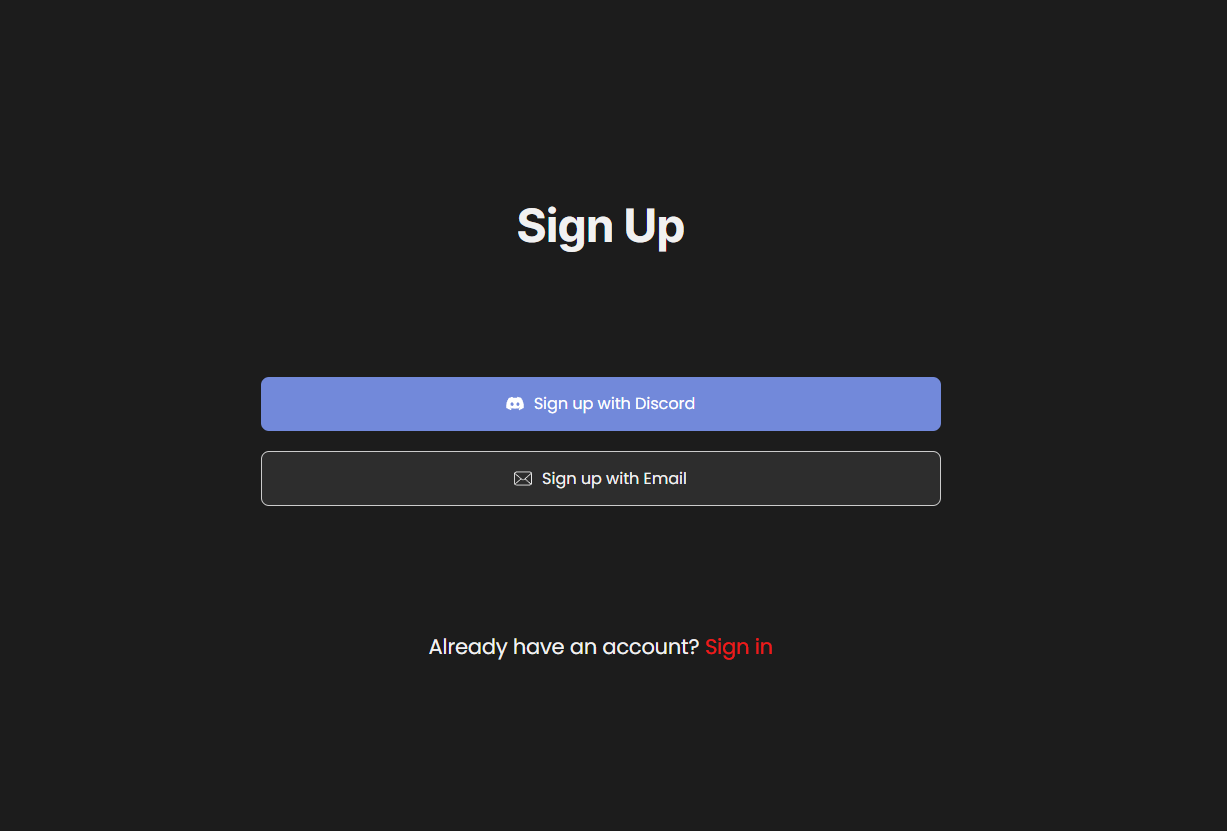
After signing up, you will need to subscribe to any paid plan of your choice from your account to continue.
How To Retrieve a Subscription in Discord Server?
First you need to join our discord server by clicking the button below:
Once joined, you will need to verify your Roblox account following the necessary steps described in the server.
You will be able to manage your subscription using commands, for this you need to use the 🤖bot-commands channel. In order to retrieve the subscription account from the membership website, use the following command:
Depending of what type of sign up you chose (email or discord), you will get a different confirmation process:
- If Discord was your chosen sign-up method, and it's the same Discord account you used to sign up, you will get the role directly without any additional steps:
Video showcasing the !login command
- If Email was your chosen sign-up method, or the Discord account don't match the one you signed up with, you will need to complete additional steps before getting the role.
You will first need to provide your email login:
Video showcasing the email !login command (part 1)
You will then get a unique verification code through email, keep the code secret and don't share it with anyone! Our staff will never ask for your verification code. Once the code is received, you will need to provide it in the requested field and then click on the submit button:
Video showcasing the email !login command (part 2)
Once entered and approved, you will be automatically logged in and the corresponding discord role will be applied.
How To Access Your Account Page and Dashboard?
Once logged in, you can access your account page directly via discord. For this use the following command:
You will get a message showing your current role and asking if you want to access your account page.
Video showcasing the !account command
You will see the following account page with 3 different buttons:
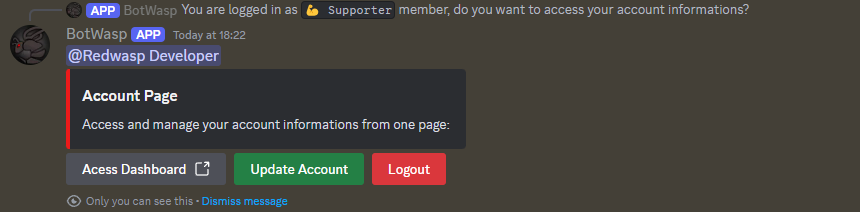
From your account page you will be able to access to following buttons:
- Access Dashboard: to access your stripe dashboard for more billing details.
- Update Account: to update your discord role, when you change your subscription plan.
- Logout: to log out of your account, in order to log into a different discord account.
How To Update Your Account to the New Plan Subscription?
If you have updated your plan, chances are that you will have to manually update your role in discord. To do so, use the following command:
(Follow the How To Access Your Dashboard? instructions for more detail)
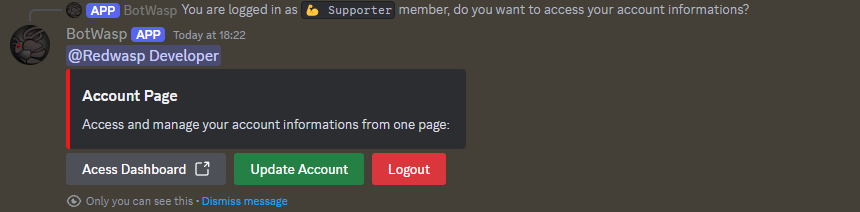
From your account page, click on the Update Account button. You should see a success message. If you don't see one, you will see this message instead:

How To Move an Active Subscription To a Different Discord Account?
In order to change the discord account you will need to logout from your courent session and then login back on your new discord account.
You can logout either by clicking the logout button from the account space, or use the following command:
In order to verify that the requested action is intended, we will send you an email with a confirmation code.
Video showcasing the !logout command
After receiving the code, enter it in the corresponding field, and then click the submit button:
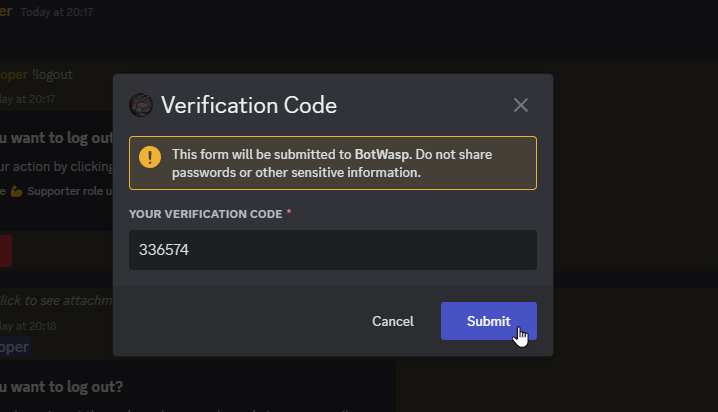
If everything has been done correctly, you will receive a message saying that you have successfully logged out of your account:

You will then be able to log back into your other discord account. Follow the previous steps of this tutorial on how to login.
FAQ
Do I Need To Subscribe To a Paid Plan to Receive a Role?
Yes, we only offer discord roles to the paid-members.
What Email Do I Need to Provide When Logging to the Discord Account?
You will need to provide your email address that you signed up with to the membership page. However this is not necessary it you directly signed up using Discord.
Why Do I Need To Provide My Email Address To The Discord Bot?
You will need to provide your email address to our Discord bot, in order to connect your Discord account with the membership website. Please note that your email address will not be used for any other purpose than for signing up.
What Type of Data Can the Discord Bot Access at the Sign Up Page
The Discord bot can only access basic information such as username, global name, avatar icon, Discord ID and email address. These informations are used to link your Discord account to the membership platform.
Can I Share My Verification Code With Others?
Do not share your verification code with anyone other than the Discord bot, including our staff.
My Subscription Didn't Update - What do I do?
Please follow the How To Update Your Account to the New Plan Subscription? instructions.